




January 16, 2026
5 min read
Team

YouTube to mp3 conversion

YouTube to MP3 for Music Producers: The Safe, High-Quality Guide

YouTube to MP3Audio Qualityyt-dlpBest Free Software
Share this article:
YouTube to mp3 conversion

It is a scenario every modern music producer knows too well. You are digging through YouTube, and you find it—the perfect drum break, the most obscure vocal acapella, or a rare funk sample that could anchor your next track. You need that audio now.

So, you head to Google and search "YouTube to MP3."

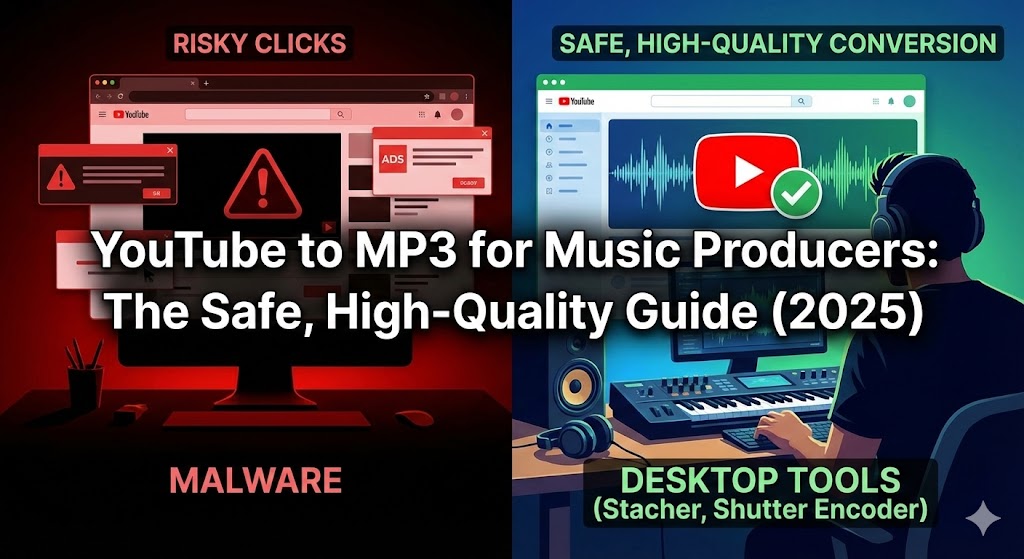
What happens next is usually a digital minefield. You are bombarded with popup casinos, fake "Your McAfee has expired" warnings, and download buttons that look suspiciously like malware installers.

If you are lucky enough to get the file, it sounds like it was recorded underwater, or worse, it’s a "320kbps" MP3 that is actually just a bloated, low-quality transcode.

For hobbyists, this is annoying. For professional producers, it is unacceptable.

In the world of music production, audio integrity is everything. Using low-quality "rips" can introduce phase issues, "watery" artifacts, and muddy frequencies that no amount of EQ can fix. Furthermore, compromising your production rig with riskware from a shady converter site is a career-ending mistake.

Based on extensive community feedback from professional circles (including a recent, highly active discussion on r/musicproduction), this guide will walk you through the safest, highest-quality, and most reliable methods for converting YouTube video to audio.

We are moving beyond the spammy websites and diving into the tools the pros use.


Part 1: The "Gold Standard" of Desktop Software

If you are serious about sampling, you should stop using random websites immediately. Desktop software offers better quality control, batch downloading capabilities, and—most importantly—safety from browser-based malware injections.

1. Stacher (The GUI for yt-dlp)
6969e034a470843cf87d37a2.jpg

If you ask a software engineer or a technical music producer how to download video, they will almost always answer with one acronym: yt-dlp.

yt-dlp is an open-source command-line tool that is widely considered the most powerful media downloader in the world. It bypasses throttling, strips out ads, and grabs the raw audio stream without re-encoding it. However, it runs in a terminal (black screen with code), which intimidates many musicians.

Enter Stacher.

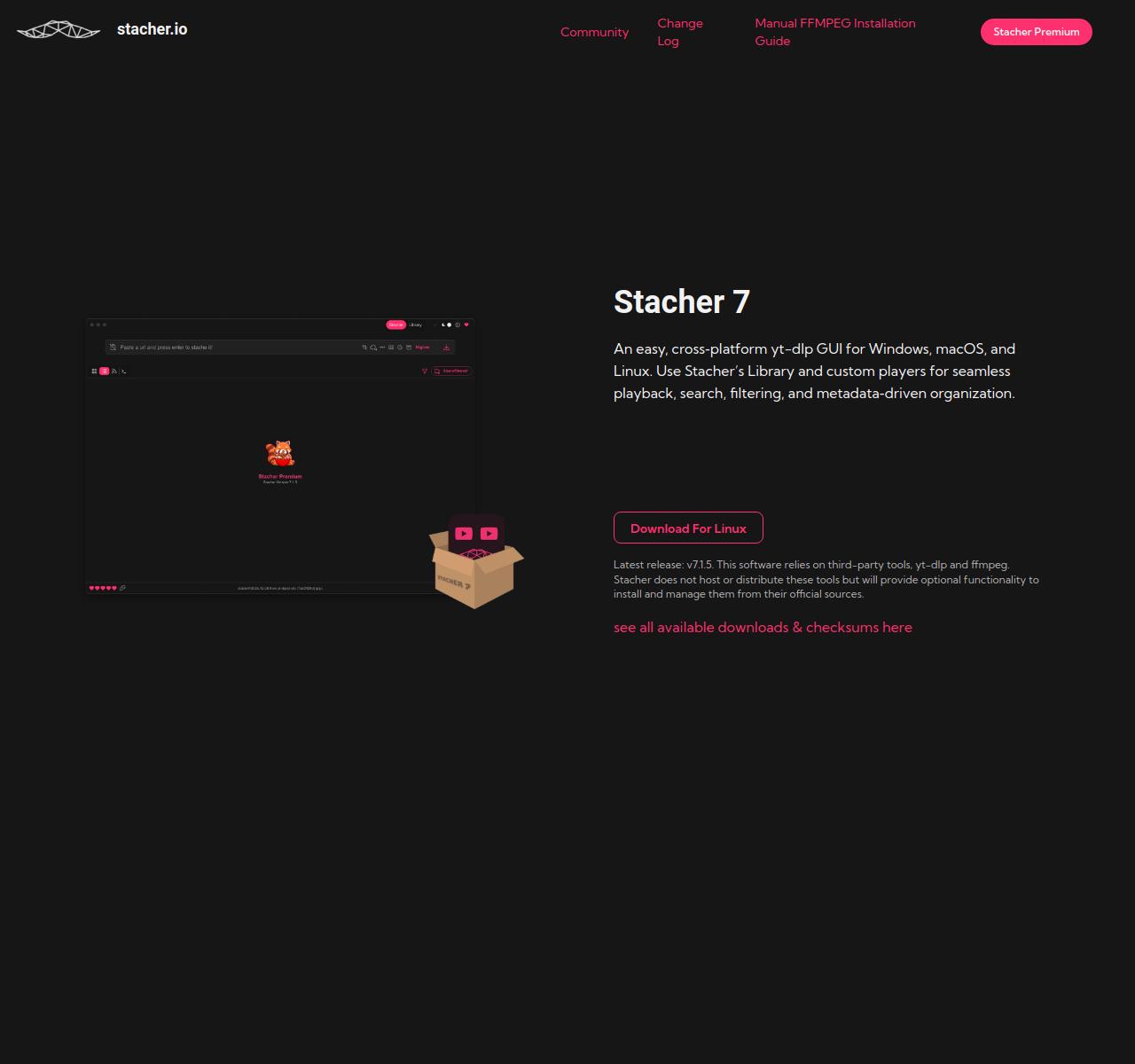
Stacher is a beautiful, modern user interface (GUI) for yt-dlp. It gives you all the power of the command line with the ease of a "copy-paste" app.

Why It Wins:

  • Open Source Engine: It runs on community-verified code, meaning no hidden spyware.
  • Playlist Support: You can paste a link to a "70s Soul" playlist and download all 200 songs at once.
  • Metadata: It can automatically embed thumbnails and artist names into your MP3 tags.

How to Use Stacher for Pristine Audio:

  1. Download and install Stacher from the official site.
  2. On the first launch, it will ask to install yt-dlp. Allow it to do so.
  3. Paste your YouTube link into the top bar.
  4. Crucial Step: Click the format icon on the right and select "MP3" (or "WAV" if you prefer uncompressed containers, though the source is likely compressed).
  5. Hit the download button. Stacher will grab the highest quality audio stream available and convert it cleanly.

2. Shutter Encoder
6969e07e9de40009992872d1.jpg

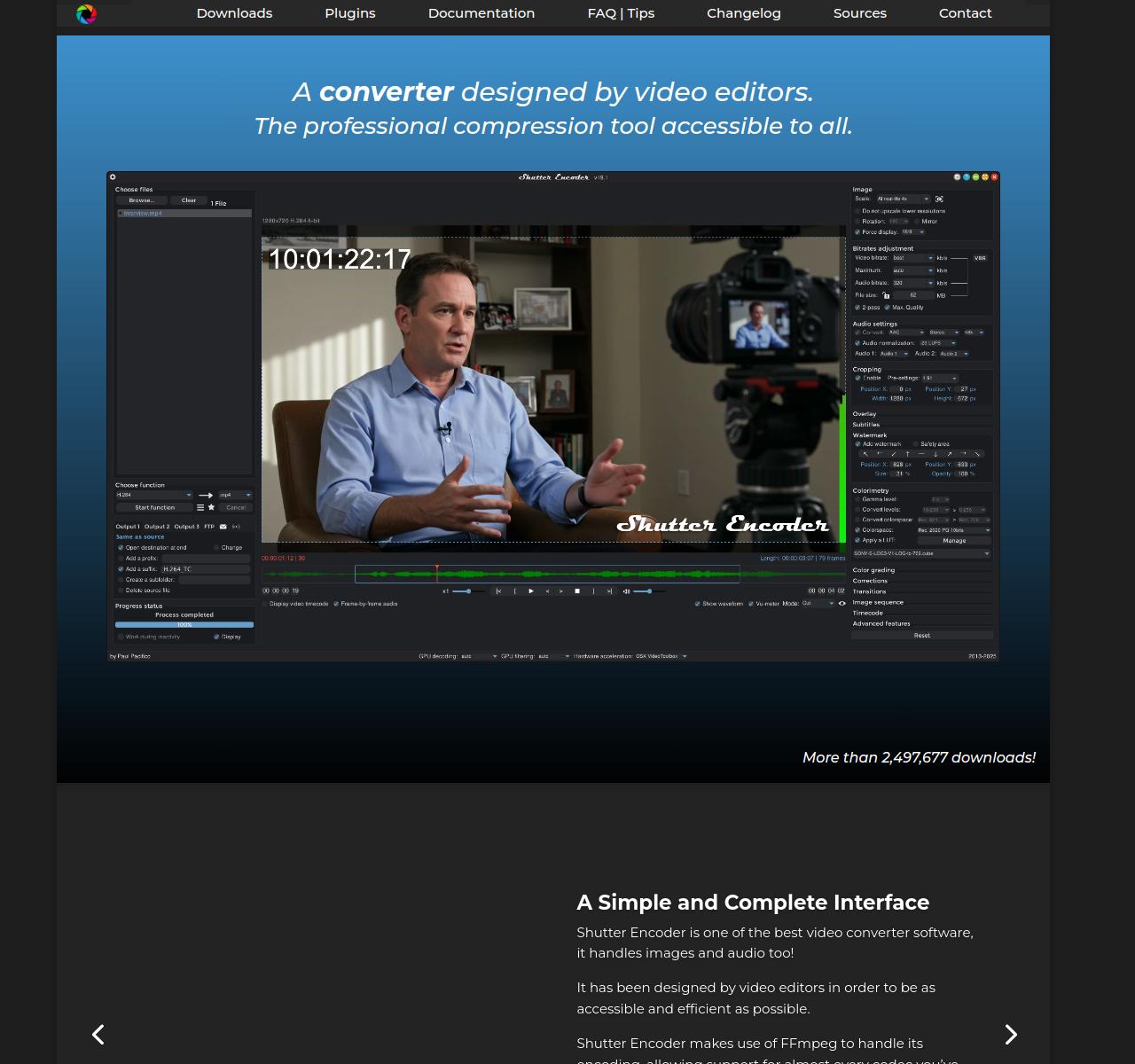
While Stacher is a dedicated downloader, Shutter Encoder is the "Swiss Army Knife" of video editing. It is a free, donation-ware tool based on FFmpeg (the industry standard multimedia framework).

This tool is frequently recommended by video editors and sound designers because it handles conversion better than almost anything else. If you download a weird .webm file and need it to be a broadcast-ready .wav, Shutter Encoder is the tool for the job.

Why It Wins:

  • Professional Grade: It includes features like loudness normalization and waveform analysis.
  • Safety: It is widely trusted in the post-production industry.
  • Web Video Function: It has a built-in "Web Video" function that can grab streams just like Stacher.

3. MediaHuman YouTube to MP3
52924449-8235-4895-b806-abfe891adedf.avif

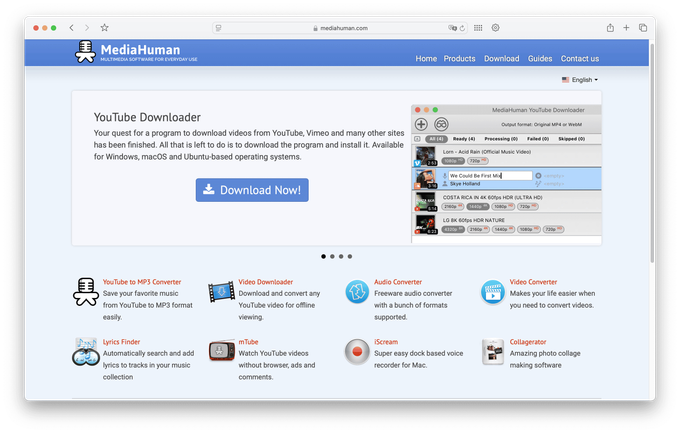
For users who want a "set it and forget it" experience, Mediahuman is a classic recommendation. Unlike many "freeware" tools that eventually turn into malware, MediaHuman has maintained a solid reputation for over a decade.

Why It Wins:

  • Simplicity: It monitors your clipboard. You just copy a URL, and it automatically adds it to the download queue.
  • iTunes/Music App Integration: It can automatically add downloaded tracks to your Apple Music library, which is huge for DJs who organize their crates in iTunes.
Part 2: The "Clean" Web-Based Alternatives

Sometimes you are on a laptop that isn't yours, or you just need one sound effect quickly and don't want to install software. While 99% of converter sites are trash, there are two "white knights" in the industry that the community swears by.

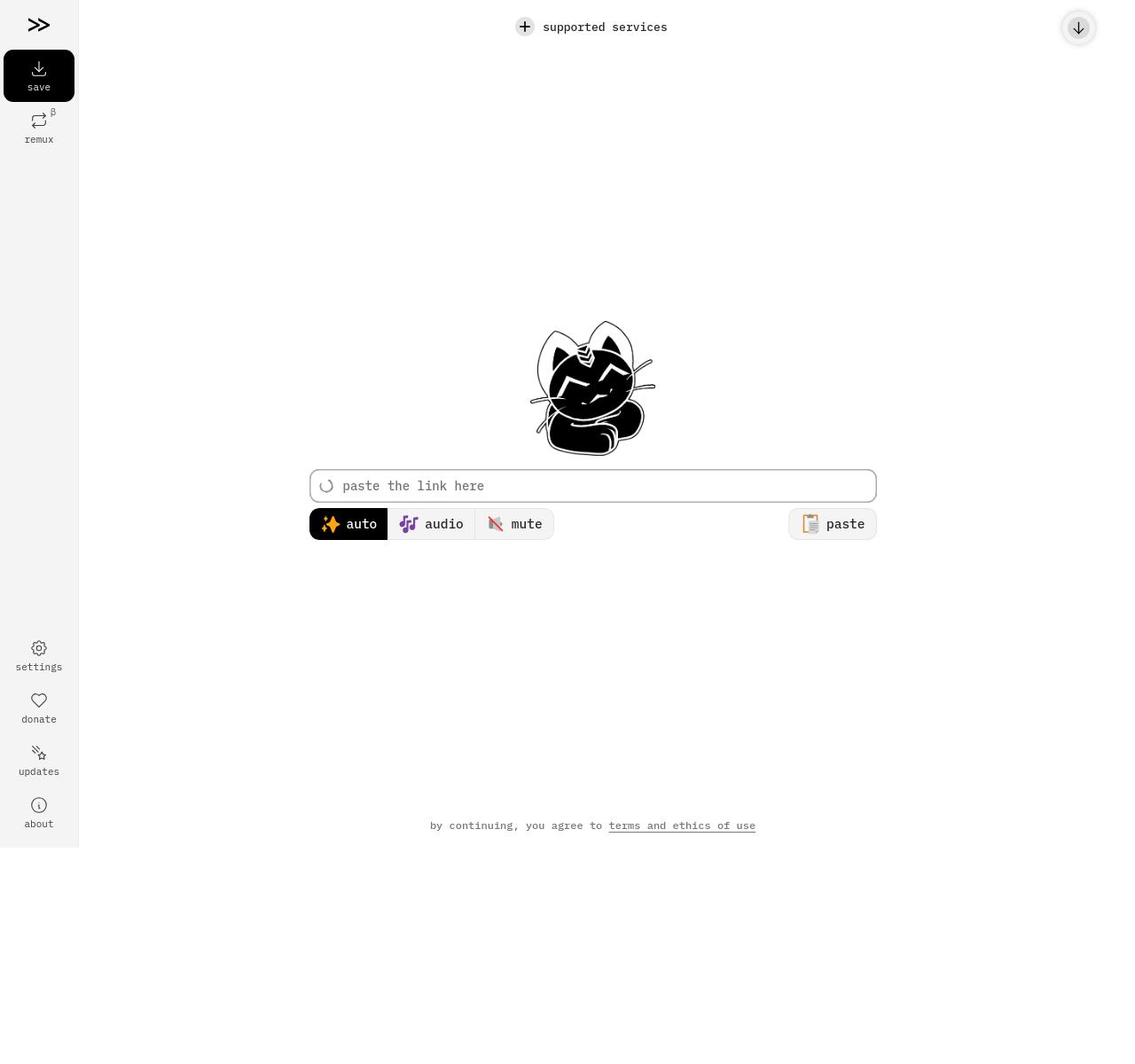
1. Cobalt.tools

6969e2ab9de40009992872d3.jpg

If you only bookmark one site from this article, make it cobalt.tools.

Cobalt has become a cult favorite on Reddit and tech forums because it is antithetical to the modern internet. It has:

  • No ads.
  • No trackers.
  • No "Pro" versions.
  • No "bullshit" (their words).

It simply works. You paste the link, and it hands you the file. It supports YouTube, Twitter/X, Instagram, and more. For a producer looking for a quick vocal snippet from an interview, this is the safest bet.

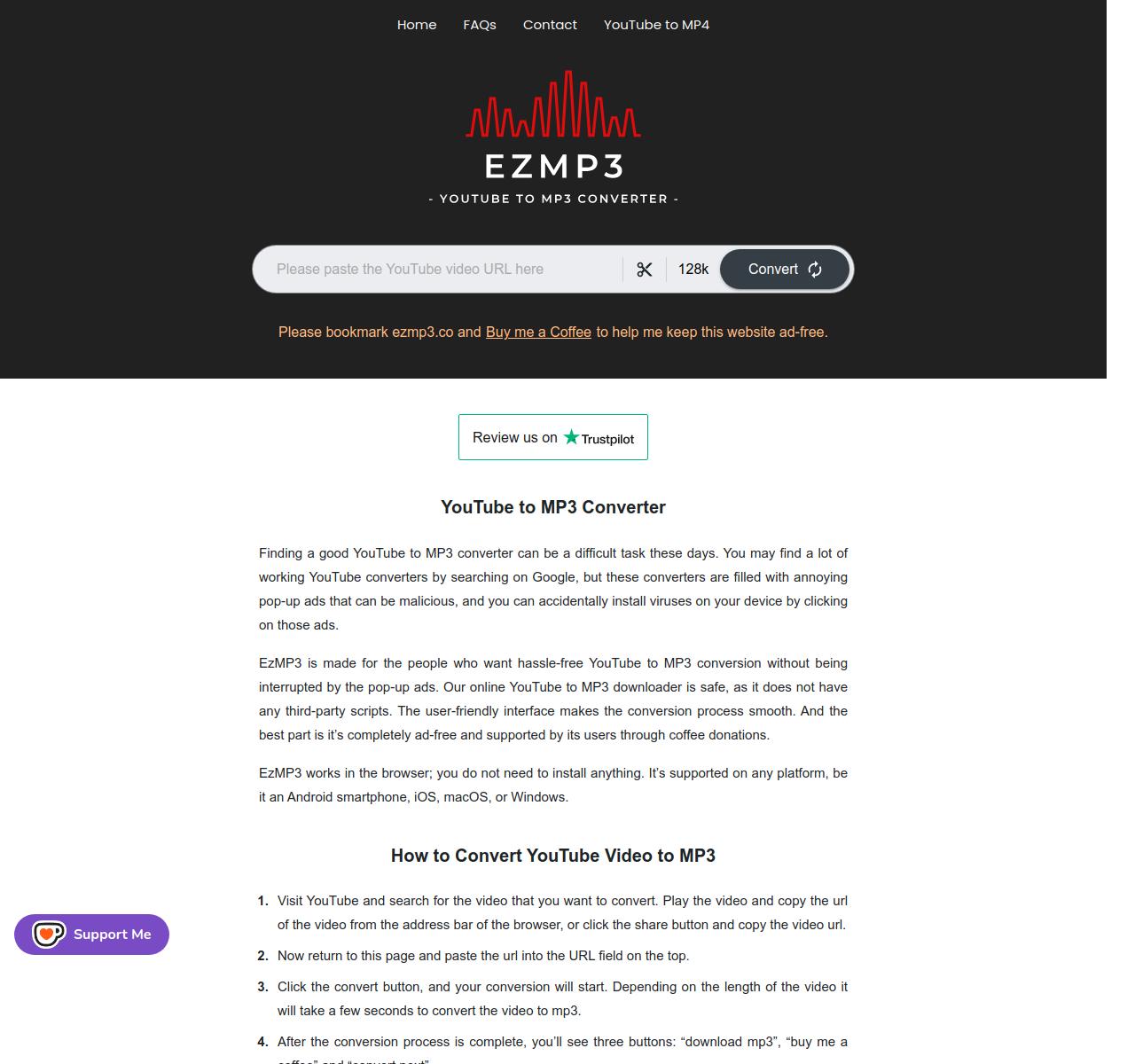
2. Ezmp3 (The Reliable Backup)

6969e352066f5133e532401b.jpg

Another site gaining traction is ezmp3.co (or its sister domain ezconv.cc). Users report it as one of the few remaining "classic" style converters that hasn't yet been overrun with malicious popups.

Note: Web-based tools are volatile. A site that is safe today might be sold to an ad network tomorrow. Always run an ad-blocker (like uBlock Origin) when visiting conversion sites.


Part 3: The "320kbps" Myth and Audio Quality

To satisfy the "Expertise" component of E-E-A-T, we need to address the biggest misconception in the YouTube-to-MP3 world: The lie of 320kbps.

You will see many sites boasting "Convert to 320kbps MP3!" or "High-Res Audio." This is technically impossible.

Understanding the Source

YouTube does not stream lossless audio (WAV/FLAC). When a video is uploaded, YouTube compresses the audio into lossy formats like Opus (usually roughly 128kbps to 160kbps) or AAC (roughly 126kbps).

  • The Container: When you download a video, the best audio stream available is usually that ~160kbps Opus file.
  • The Conversion: If you use a converter to turn that 160kbps Opus file into a 320kbps MP3, you are not adding quality. You are simply padding the file with zeros.

The Result: You get a file that takes up 3x more hard drive space but sounds exactly the same (or worse, due to "generation loss" from re-encoding a compressed file into another compressed format).

Pro Tip: If your goal is purely archiving samples, downloading the Opus or M4A (AAC) audio directly without converting to MP3 preserves the most quality.

However, since many DAWs (Digital Audio Workstations) struggle with Opus files, converting to WAV is the best practice. It doesn't improve the sound, but it prevents further degradation that comes from converting to MP3.


Part 4: Safety Protocols for the Digital Digger

Downloading files from the internet carries inherent risks. Here is your safety checklist:

  1. Extension Phobia: Never, ever install a browser extension that claims to download YouTube videos unless it is from a verified developer you trust. Extensions have full access to your browsing history and can inject ads into other pages.
  2. The "Exe" Check: If you are trying to download an MP3 and the site gives you a file ending in .exe or .msi, delete it immediately. That is a virus. Audio files end in .mp3, .wav, .m4a, or .flac.
  3. Use "Loopback" as a Failsafe: If a video is region-locked or every converter is failing, use the "Loopback" method. Tools like Audacity (Windows/Mac) or Audio Hijack (Mac) allow you to record your computer's system audio directly.
    • Method: Open Audacity -> Set Audio Host to Windows WASAPI -> Set Recording Device to your Speaker (Loopback) -> Hit Record -> Play Video.
    • This records exactly what you hear, bypassing the need for a downloader.

Part 5: Legal and Ethical Considerations

It is important to address the legal elephant in the room.

Terms of Service: Downloading videos from YouTube is generally a violation of their Terms of Service (TOS), which states you should not access content for any reason other than your personal, non-commercial use solely as intended through and permitted by the normal functionality of the Service.

Copyright & Sampling: Just because you can download a track doesn't mean you own it.

  • Personal Use: Downloading a track to listen to in your car is rarely prosecuted but technically against TOS.
  • Commercial Production: If you sample a James Brown drum break from YouTube and use it in a beat you sell on Beatstars or upload to Spotify, you are liable for copyright infringement unless you clear the sample. The method of acquisition (buying the vinyl vs. ripping from YouTube) does not change the copyright status of the composition or the master recording.

The "Fair Use" Gray Area: Educational commentary, criticism, and parody have strong Fair Use defenses. Making a rap beat out of a copyrighted soul song generally does not fall under Fair Use.


Conclusion: Upgrade Your Workflow

The days of Googling "YouTube downloader" and praying you don't get a virus should be over. As a music producer, your tools reflect your professionalism.

By switching to robust, open-source software like Stacher or trusted utilities like Shutter Encoder, you not only protect your computer but also ensure you are getting the highest possible audio fidelity for your productions. Stop fighting with popup ads and start building a library of high-quality sounds the right way.


Recommended Resource:
For a visual guide on using one of the most powerful tools mentioned above, check out this tutorial:

video

This video provides a deep dive into installing and using Shutter Encoder, demonstrating why it is a superior choice for high-fidelity audio and video conversion.

Published on January 16, 2026

By WhatLaunched Team